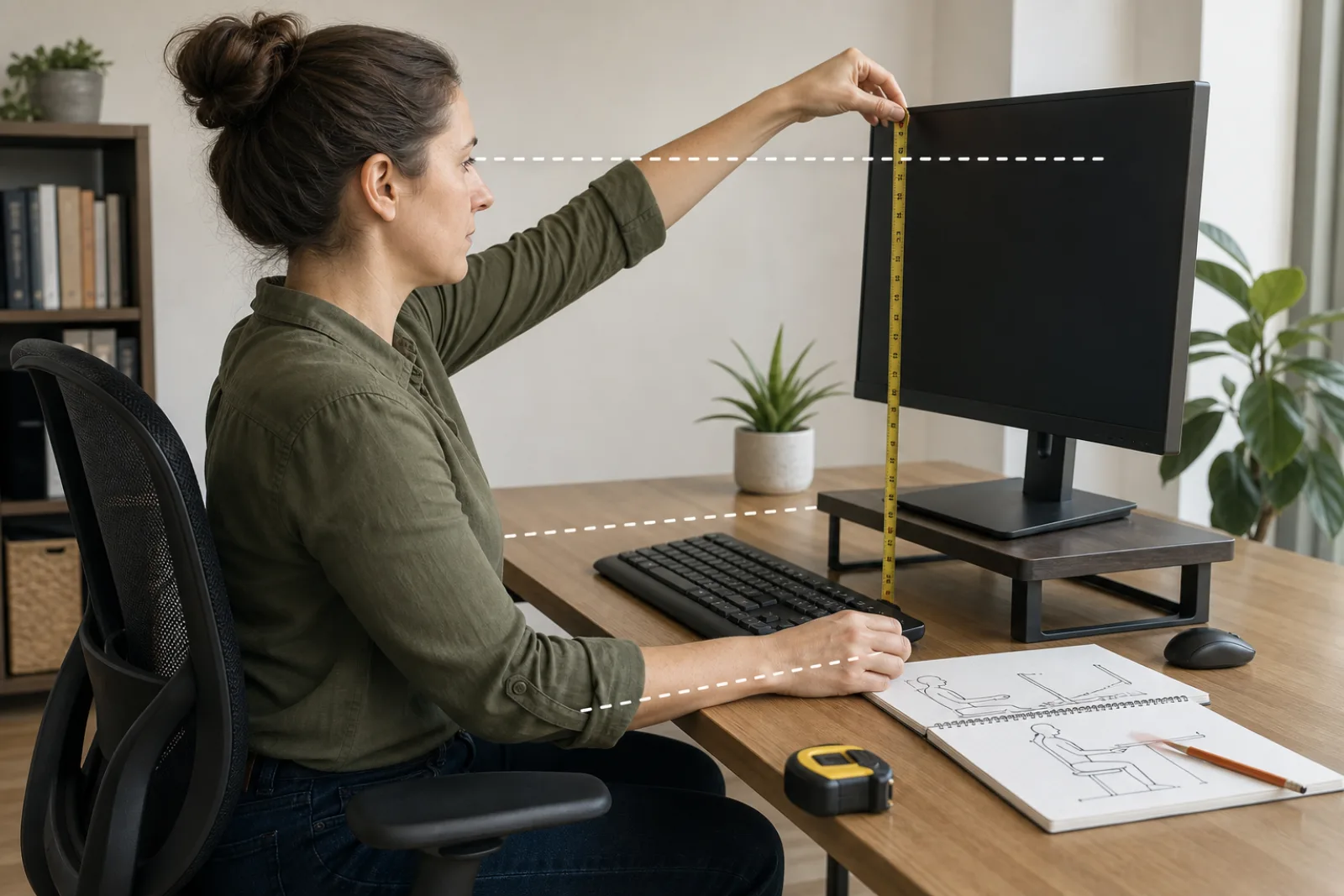
"Sit up straight" is not actionable advice, because it does not tell you where your screen should be, how far your keyboard should sit, or what your elbows should be doing. OSHA's Computer Workstations eTool does. It is a detailed, component-by-component reference built to reduce musculoskeletal disorder risk, and unlike most desk-setup advice, it gives specific, checkable targets rather than a general feeling of correctness.
Each part of a workstation has a specific target in OSHA's guidance, not just a general recommendation to be comfortable.
- 01Monitor height
Top line of the screen at or below eye level, so you look slightly down at the screen rather than tilting your head back to see it.
- 02Monitor distance
At least 20 inches from your eyes, positioned directly in front of you rather than off to one side.
- 03Keyboard height and distance
Close enough that elbows stay near the body, at a height where forearms are roughly parallel to the floor.
- 04Wrist position
Straight, not bent up, down, or to either side, while typing.
- 05Shoulder position
Relaxed, not raised or hunched toward the ears.
- 06Feet
Flat on the floor or a footrest, not dangling or tucked under the chair.
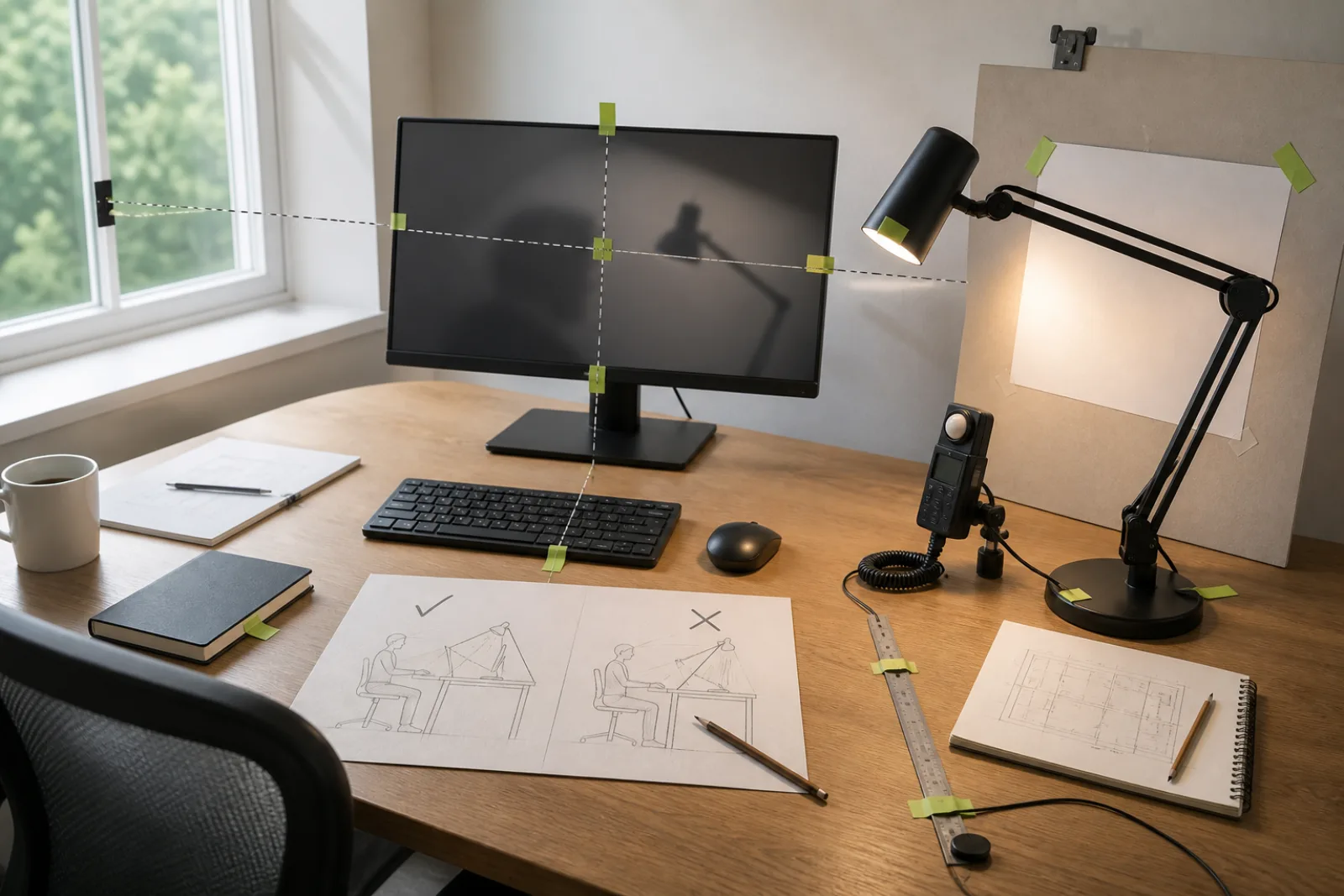
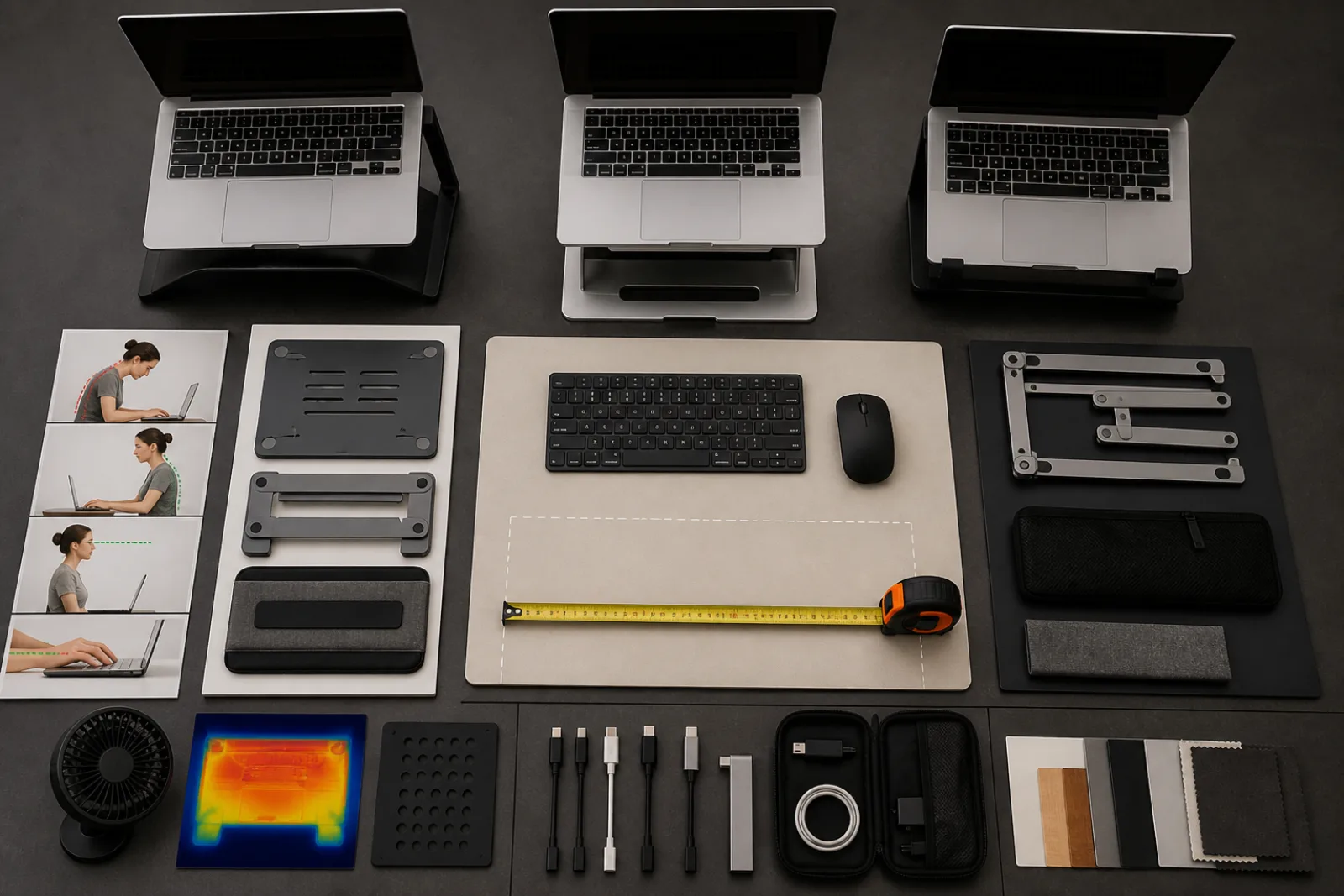
The monitor-height rule is the one most desk setups get backward. A monitor placed too low forces your neck to tilt down and forward; one placed too high, a common result of stacking a laptop on books without an external keyboard, forces your neck to tilt back. OSHA's guidance specifically calls out the top of the screen sitting at or below eye level, which for most people with a separate monitor means the screen's top edge should be roughly at or just below where your eyes naturally look straight ahead, not the center of the screen. This is exactly why using a laptop's built-in screen at a proper typing height almost always fails one half of the equation: either the screen is too low for the neck, or the keyboard is too high for the wrists, because a laptop physically cannot satisfy both placements independently. An external keyboard, paired with the laptop raised on a stand, is what actually lets both targets be met at once.
The keyboard rule works the same way: elbows close to the body, forearms roughly parallel to the floor, wrists straight rather than bent. If your desk is too high for your chair, your shoulders end up raised to reach the keyboard, which is the shoulder-tension source of a surprising number of "my desk is uncomfortable" complaints that get blamed on the chair instead. OSHA's guidance frames neutral posture as the underlying goal behind every individual placement rule: joints naturally aligned, reducing stress on muscles, tendons, and the skeletal system, rather than a specific rigid position to lock into for eight hours straight.
Checking your own setup against OSHA's targets
- 01Top of your screen at or below eye level
If you're tilting your head back to see the top of your screen, it's too high.
- 02Screen at least 20 inches away
Roughly an arm's length; closer forces more frequent focus strain.
- 03Elbows close to your body while typing
Reaching forward or out to the sides signals the keyboard is too far or too low.
- 04Wrists straight, not bent, while typing
A wrist rest should support a neutral wrist, not tilt it upward.
- 05Feet flat on the floor or a footrest
Dangling feet usually mean the chair is too high relative to the desk.
The short version
- 01
OSHA's guidance gives specific, checkable targets: monitor top at or below eye level and at least 20 inches away, elbows close to the body with forearms roughly parallel to the floor.
- 02
A laptop used alone almost always fails one of these targets, since screen height and keyboard height cannot be adjusted independently; an external keyboard paired with a raised laptop solves this.
- 03
These are targets to work toward and adjust periodically, not a single rigid posture to hold all day.
Questions
- 01Do I need a standing desk to follow OSHA's guidance?
No. OSHA's placement targets apply to seated and standing setups equally; a standing desk is one way to vary posture throughout the day, but it is not a requirement for meeting the monitor, keyboard, and wrist placement targets.
- 02What's the single highest-impact change if I can only fix one thing?
Based on OSHA's own component breakdown, monitor height is usually the most consequential single fix, since it drives neck position for the entire time you're at the screen, and it is often the cheapest to correct (a stand or stack of books versus a full desk or chair replacement).